
How do I integrate Swag.com and Shopify?
With Swag.com’s Shopify integration, you can easily build a company store to sell your branded goods! Whether it’s for your current employees or to reach new audiences, we’ll help you get your swag to your biggest fans!
What do you need In order to set up your Swag.com storefront in Shopify?
-
A Swag.com account
-
Products in your Swag.com inventory closet
-
A Shopify storefront set up on at least a Basic Shopify plan
Once you have the above, your storefront integration with Swag.com will be easy! If you need to order some products with Swag.com to set up your store, you can reach out to customer@swag.com or chat in to get some help! And if you need help getting started with a Shopify storefront, you can start here.
What are the steps you need to take in order to set up your Swag.com integration with Shopify?
-
First, make sure your Shopify storefront is designed and ready to go! Shopify offers a broad range of templates and designs you can use to make this as easy as possible! Take a look at what Swag.com built for our company store here. This can be done while your items are in production.
-
Next, once your items are delivered, you will need to create a Swag.com inventory closet called “Shopify Store” in your Swag.com account
Note: Products must be in your inventory in order to create the Shopify Store closet -
Once your “Shopify Store” closet is created, move the swag items you want to make available in your storefront to this closet
-
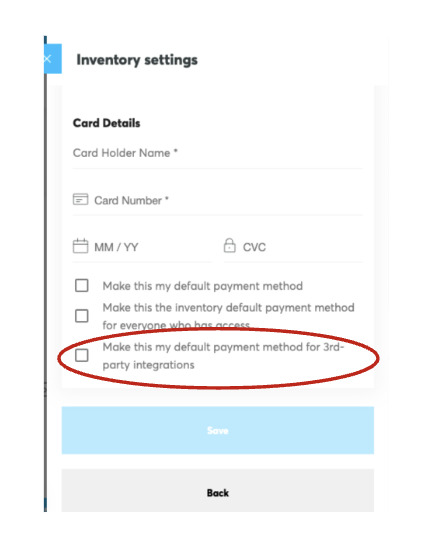
You should then make sure you have automatic payments enabled for third party integrations so none of your orders get held up due to delays in payment for shipping
-
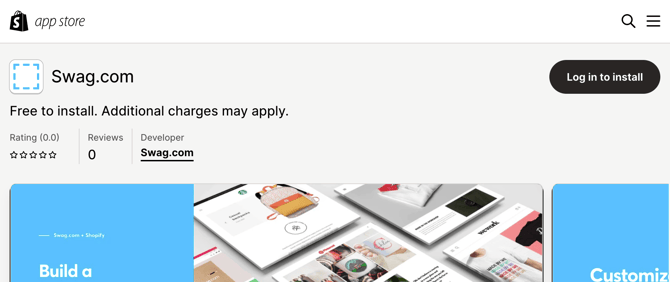
Then you will need to install the Swag.com app in Shopify from the Shopify app store: https://apps.shopify.com/. Search for "Swag.com" in the app store, select the Swag.com app, and click Add app to connect it to your Shopify store
-
Finally, you will need to sync your products to your store. You can connect *one* - and only one - closet to a store, and will be able to select the items from that closet that you want to add / remove from your Shopify store
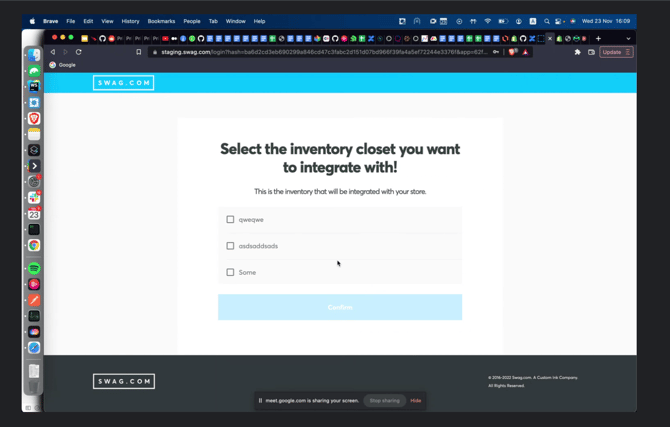
Once your products are synced, your Swag.com-powered storefront is ready to take orders.
Are there any tips you should know before you set up your store?
Yes, there are a few Shopify considerations:
-
Plan Selection - review the current plans and features here to choose the plan that fits your company and store needs. Plan names, features, and pricing may change, so verify the details on Shopify's site before you decide.
-
Shipping details - check out this article to see what makes sense for you. Do you want pass through shipping where the Swag.com rates pass through directly to your Shopify customer? Or do you want to set the shipping rates yourself?
-
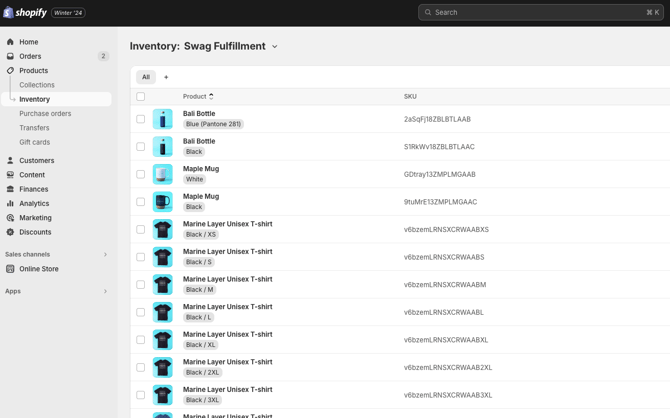
Location Setup - make sure your inventory closet is linked to the Swag Fulfillment location in Shopify, not the default location. To check, go to “Products” > “Inventory” in Shopify, open the location drop-down, and confirm your closet's inventory appears under Swag Fulfillment. If you need help, chat with our team on swag.com or contact us at support@swag.com.
For any questions about the integration of Swag.com into your Shopify storefront, please contact support@swag.com!